
How Much Internet Speed Do You Actually Need?
Work out your download and upload needs, compare 100 Mbps with faster plans, and check whether a cheaper internet plan would actually save you money.

 Companion video
Prefer watching? Explore the topic on video. The video introduces the decision. This guide replaces per-person shortcuts with current service requirements and separate download/upload calculations.
The short answer
Choose a plan for the activities that overlap, check upload separately, and test your current connection. A larger download number will not, by itself, solve weak Wi-Fi.
You do not need gigabit internet just because you have a busy home. You need enough download and upload capacity for the things that happen together, plus room for the activity your first estimate missed.
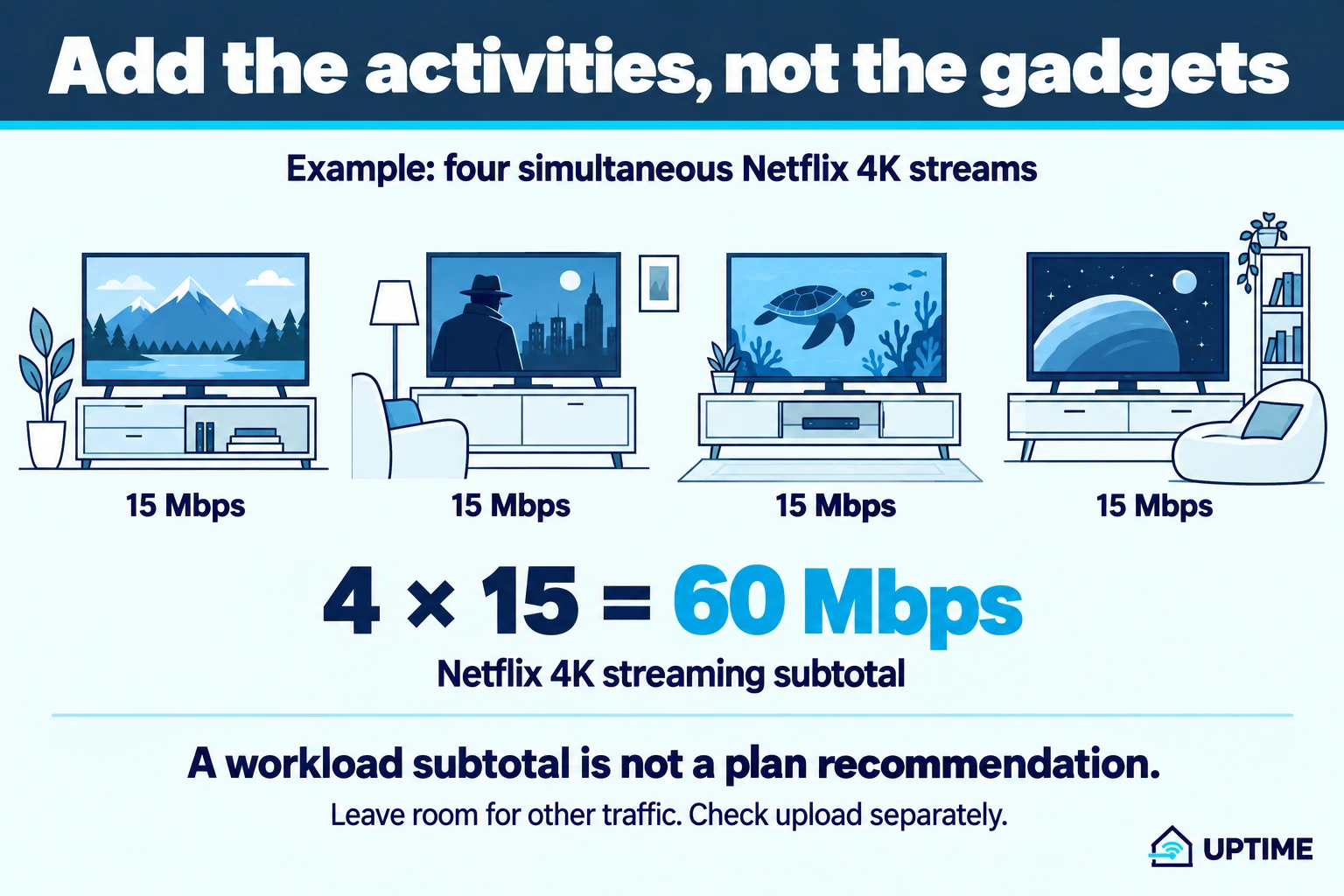
For perspective, four Netflix 4K streams add up to 60 Mbps using Netflix’s recommendation of 15 Mbps per stream. That is a streaming subtotal, not permission to buy a 60 Mbps plan: calls, downloads, backups, and real connection performance still matter. Netflix’s recommendations
The useful question is not “What speed should a family of four buy?” It is “What would a different plan actually change in our home?” Here is how to answer it before changing your bill.
This guide expands on the companion video. The video’s per-person estimate is a shortcut, not a sizing rule. Connected devices can create traffic without someone using them, a frozen call does not prove an upload problem, and neither a bigger plan nor a fiber label guarantees a fix.
Check both numbers on your plan
Download brings data into your home: a film, a game update, or a file. Upload sends data out: your camera on a call, a video submission, or a cloud backup. A plan described as 500/20 Mbps has 500 Mbps download and 20 Mbps upload. Those are separate directions, not 520 Mbps you can spend however you like.
Compare upload as well as download when choosing a plan.
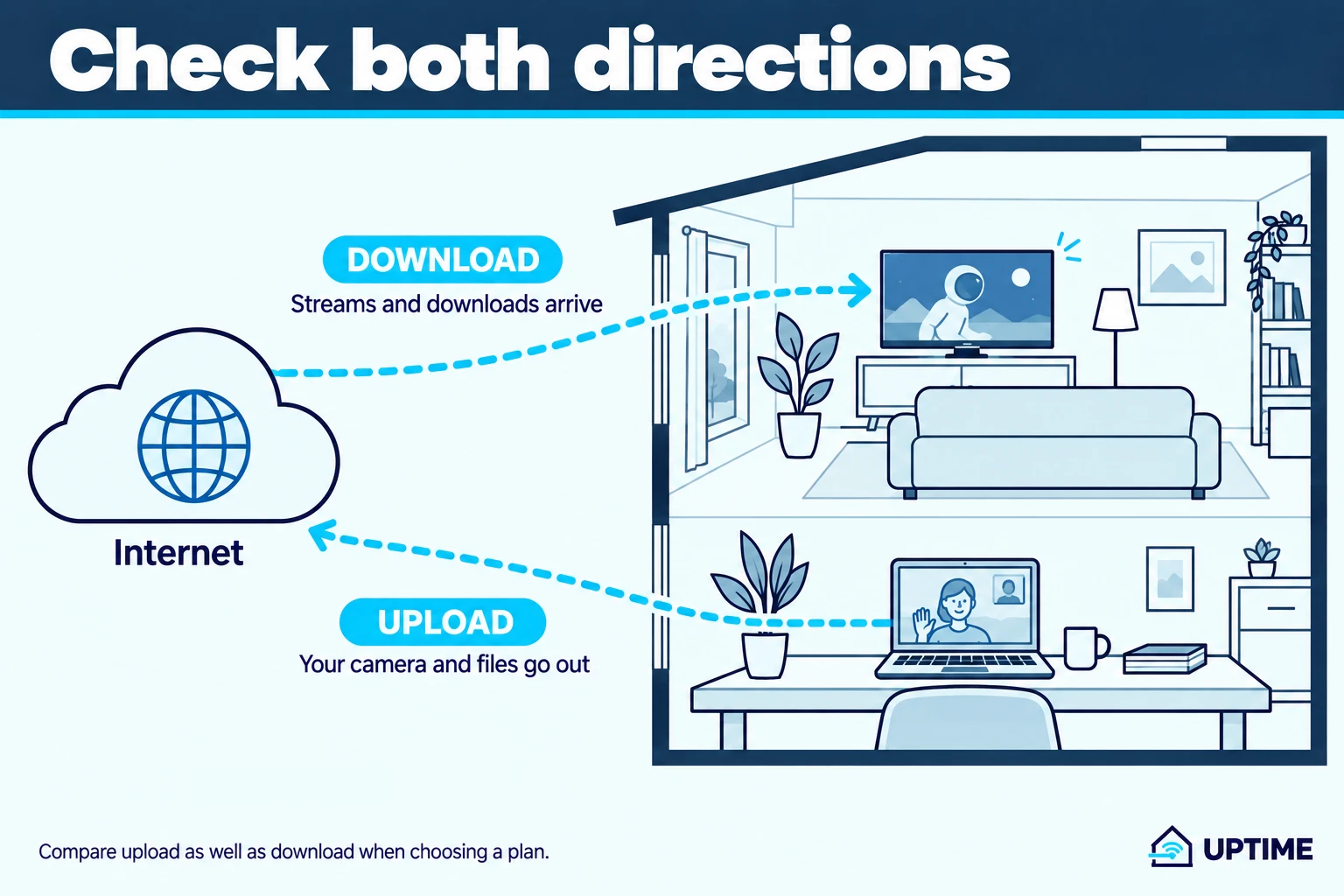
Mbps means megabits per second. It describes a data rate, not how quickly a response begins. Latency is delay, measured in milliseconds. A connection can have substantial capacity and still respond poorly; Cloudflare distinguishes bandwidth, actual throughput, and latency in its latency explainer.
For U.S. plans, find the provider’s Broadband Facts label. It lists typical download and upload speeds, latency, pricing, and data allowances. Compare that information with your actual bill, including any discount you currently receive. FCC label guide, PDF
Write down your current download, upload, total monthly charge, and the price after any promotion. You will use those four numbers later.
Count the activities that overlap
Picture your busiest normal hour. Not every gadget doing everything at once, but not a quiet Tuesday morning either.
List each stream, call, and other substantial transfer that overlaps. Ask whether backups, camera uploads, or game updates run then too. The people count is a starting point for asking questions, not the calculation itself.
Use requirements for the actual services and settings you use:
| Activity | Published guidance | What it means here |
|---|---|---|
| One Netflix 1080p stream | 5 Mbps or higher | A download allowance for that stream |
| One Netflix 4K stream | 15 Mbps or higher | Multiply by simultaneous streams, not every TV you own |
| One Zoom 1080p group-video session | 3.0 Mbps down, 3.8 Mbps up for video | Budget both directions; audio and other features add traffic |
| GeForce NOW on Windows, 1080p at 60 fps | 25 Mbps, plus its latency requirement | Cloud gaming is a streamed workload, not the same as running a game locally |
Sources: Netflix, Zoom’s bandwidth tables, and NVIDIA’s Windows requirements. These are service-specific planning figures, not measurements of your household. Other services, resolutions, and meeting layouts differ. Zoom also exposes in-call statistics if you need to inspect your actual usage.
A worked example, not a magic answer
Imagine two people watching separate Netflix 4K streams while two others each attend a Zoom group call with 1080p video.
| Simultaneous workload | Download subtotal | Upload subtotal |
|---|---|---|
| Two Netflix 4K streams | 2 × 15 = 30 Mbps | Not estimated here |
| Two Zoom 1080p group-video sessions | 2 × 3.0 = 6 Mbps | 2 × 3.8 = 7.6 Mbps |
| Accounted-for traffic | 36 Mbps | At least 7.6 Mbps |
That subtotal excludes call audio, screen sharing, streaming control traffic, browsing, backups, and updates. It does not establish that a 40/10 plan will work. Even 100/10 deserves a closer look at upload: subtracting 7.6 from 10 leaves a nominal 2.4 Mbps, not a guarantee of usable spare capacity.
If the overlap is four Netflix 4K streams instead, the streaming calculation is 4 × 15 = 60 Mbps. Different activities, different subtotal. Neither example needs a universal “25 Mbps per person” rule.
A workload subtotal is not a plan recommendation. Leave room for other traffic and check upload separately.
Our approach: use this estimate to shortlist plans, then compare their typical speeds and test your real workload. Do not fill the plan to its advertised limit on paper. If an optional large backup causes problems, try scheduling it outside calls before buying capacity solely to run everything together.
Is 100 Mbps enough, or should you pay for 300 or gigabit?
100 Mbps download is worth considering when your estimated overlap is comfortably below it, upload is adequate, and large downloads can wait. It is not a promise for every household. A 100/10 plan and a 100/100 plan have the same headline download speed but very different upload limits.
For 300, 500, or 1,000 Mbps, ask what the extra capacity buys you:
| Your reason for considering more speed | The useful comparison |
|---|---|
| Several substantial activities overlap | Add their requirements in each direction and compare typical plan speeds |
| Large downloads take too long | Decide what shorter waits are worth to you |
| Uploading work interrupts the day | Compare upload speeds, not just the download tiers |
| One distant room is miserable | Check Wi-Fi first; use the next section |
| Everything already works | Compare the full cost of a lower tier and its trade-offs |
Faster downloads can be a real benefit
Suppose a download is 10 GB, using decimal units. That is 80,000 megabits. At a sustained 100 Mbps, the ideal transfer time is 800 seconds, or 13 minutes 20 seconds. At 500 Mbps it is 2 minutes 40 seconds; at 1,000 Mbps, 1 minute 20 seconds.
Those are arithmetic lower bounds, not test results. They assume the entire transfer sustains that rate with no other traffic or overhead. The server, device, connection, and installation process can add time. If you download large files often, less waiting may justify the price. If you rarely do, a higher tier may buy a benefit you barely use.
For gaming, separate playing, downloading updates, and cloud gaming. Do not use one tiny “gaming Mbps” figure for all three. NVIDIA, for example, specifies both throughput and a connection below 80 ms to its data center for GeForce NOW. More download capacity is not a guarantee of lower latency. GeForce NOW requirements
Rule out a Wi-Fi problem before changing the plan
You can buy more incoming capacity and still have trouble reaching the bedroom. Before treating a speed-test number as an upgrade request:
- Test the same device beside the router and in the problem room, using the same test service.
- If you already have suitable equipment, add an Ethernet test from a router LAN port with the computer’s Wi-Fi off.
- Record download, upload, time, location, and whether anything else was using the connection. Repeat an unusual result.
Verizon’s testing guidance recommends Ethernet and controlling competing traffic. A device’s capabilities and the test conditions affect the result. Leave required work security tools alone; do not disconnect a work-required VPN just to improve a number. Verizon’s speed-test guidance
Our next-step rule: if the nearby or wired connection works well and the distant room does not, investigate coverage before buying a faster tier. If wired performance also disappoints, check equipment and provider diagnostics rather than assuming insufficient subscription speed. Our free Wi-Fi troubleshooting guide walks through those comparisons. If the boxes themselves are confusing, start with the home-network setup guide.
A speed test measures a path at a moment, not how much internet your family needs. Cloudflare’s test, for example, measures latency while the connection is idle and busy, but deliberately does not aim to measure maximum throughput. Its browser results also include local bottlenecks. Use the provider’s recommended test when discussing service performance, and do not treat unlike tests as interchangeable. How Cloudflare’s test works
Compare the bill, not just the speed badge
Ask your provider for the current and proposed plan details in writing. Check:
- The total recurring cost, including equipment and fees.
- When any introductory price ends.
- Upload as well as download speed.
- Data allowances and excess-use charges.
- Whether changing tiers affects a bundle, discount, or contract.
- Any one-time change charge and what returning to your old tier would cost.
The FCC’s Broadband Facts guide explains the label’s pricing, fee, performance, and allowance fields. Your existing account terms still need checking; do not assume the advertised new-customer deal applies to you.
Hypothetical savings: moving from a total of $80 to $60 per month saves $20 monthly, or $240 over 12 months, if both totals stay unchanged. Subtract one-time charges and account for scheduled price increases. Do not turn a promotional discount into a permanent savings claim.
Here is a useful question to ask: “What would my full monthly bill and upload speed be on the lower tier, when would the price change, and could I return to my current tier without losing my existing discount?”
If the cheaper tier barely saves anything, reduces upload you need, or removes useful terms, staying put can be the right answer. This is about buying the right service, not always buying less.
Before-and-after checklist
- Record the current plan’s download, upload, total bill, and promotion end date.
- List simultaneous activities, including unattended transfers.
- Calculate download and upload separately, noting what the estimate leaves out.
- Compare nearby Wi-Fi, the problem room, and Ethernet where available.
- Confirm the proposed tier’s full cost, terms, and route back before changing it.
- After a change, repeat your busiest normal workload and keep the results.
You are finished when the calls, streams, uploads, and rooms you rely on work at a price you are comfortable paying. The biggest number on the order page is not the goal.
Companion video
Watch the companion video.
The video introduces the decision. This guide replaces per-person shortcuts with current service requirements and separate download/upload calculations.
YouTube only loads after you press play.
Internet Plans & Speed
How to Compare Two Internet Plans Without Missing the Fees
Compare internet plans over the same period, including equipment, setup, promotion changes and exit costs. Use a worked example and a practical worksheet.

Internet Plans & Speed
Why a Fast Download Speed Can Still Mean a Bad Video Call
Fast downloads do not guarantee clear calls. Check upload, Wi-Fi, competing traffic and in-call statistics with a repeatable troubleshooting sequence.

Wi-Fi & Networking
How to Fix Slow Wi-Fi Without Buying Anything
Find out why your Wi-Fi is slow, then test router placement, extenders, bands, channels, and updates before paying for new equipment or a faster plan.

About the author
Doni makes home tech understandable.
Uptime turns the answers he gives friends and family into practical public guides. Research assistance and editing tools may be used; claims are checked against named sources and no hands-on testing is implied unless stated.