
Why a Fast Download Speed Can Still Mean a Bad Video Call
Fast downloads do not guarantee clear calls. Check upload, Wi-Fi, competing traffic and in-call statistics with a repeatable troubleshooting sequence.


The short answer
A call needs a steady connection in both directions. Check upload, Wi-Fi, competing traffic and the call's own statistics before assuming you need a faster plan.
Your speed test says 500 Mbps. Your next video call freezes anyway.
A speed test is useful, but its headline does not describe everything happening during a call. You might have plenty of download capacity while an upload is full, Wi-Fi is dropping packets, or the computer itself is struggling.
Start with the symptom and change one thing at a time. That gives you a reason to fix the Wi-Fi, contact IT or reconsider your plan, rather than another number to buy.
What a video call needs
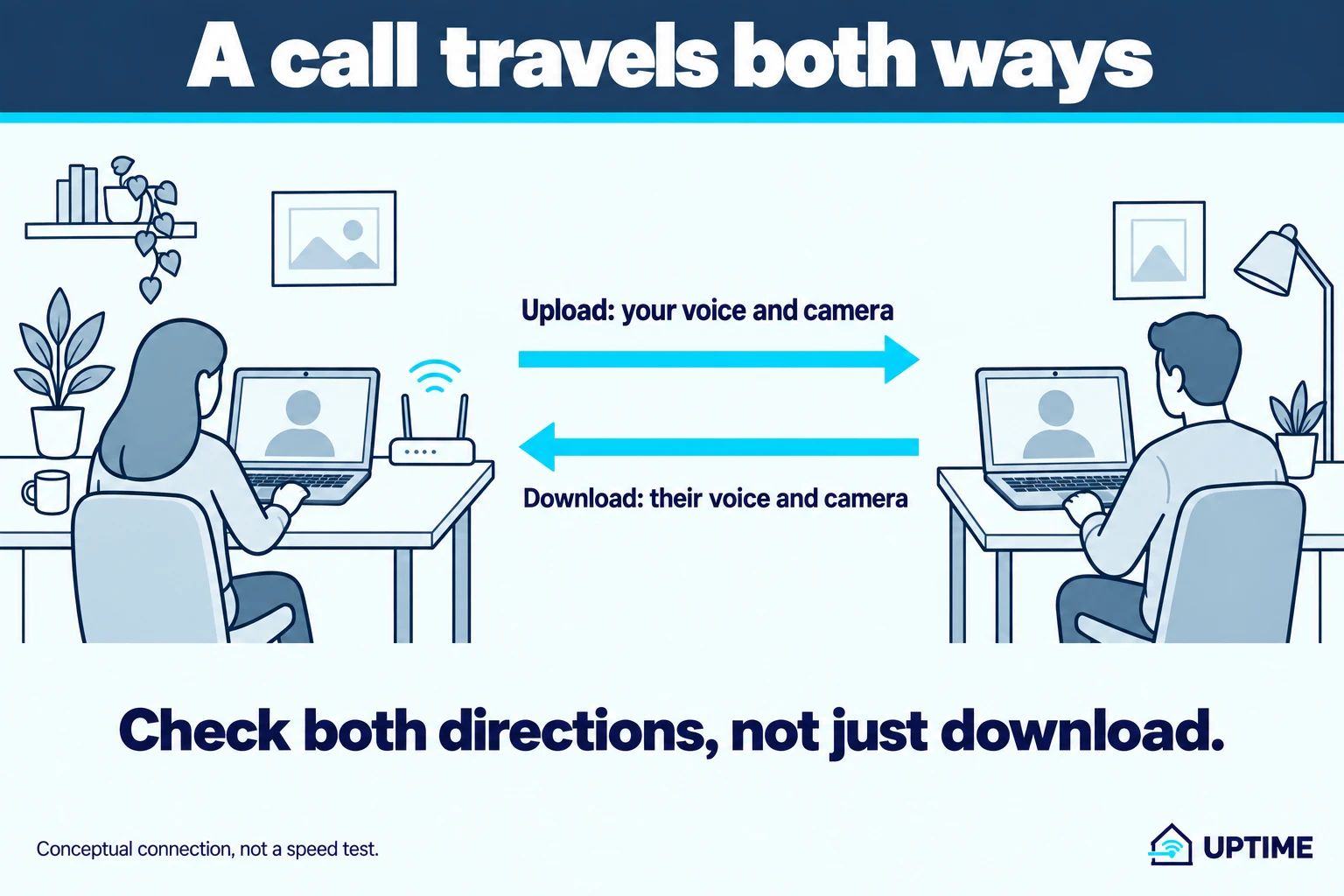
Your camera and microphone send data. Other participants’ pictures and voices arrive. Both directions need enough available capacity during the meeting.
A call travels both ways. Check upload as well as download.
Vendor figures help put that in perspective:
| Example activity | Upload | Download |
|---|---|---|
| Teams meeting audio, recommended | 58 kbps | 58 kbps |
| Teams meeting video, recommended | 2.5 Mbps | 4 Mbps |
| Zoom group video at 1080p, estimated | 3.8 Mbps | 3 Mbps |
The Teams figures are per endpoint, from Microsoft’s network preparation guidance. The Zoom example comes from Zoom’s bandwidth estimates. They describe different products and modes, not interchangeable minimums. Layout, resolution and activity affect usage.
These figures are not a recommendation to buy a 4 Mbps internet plan. Other people and applications share the connection, and having just enough nominal capacity leaves no room for their traffic.
For a hypothetical example, a 10 Mbps upload connection with an 8 Mbps backup upload has only 2 Mbps of nominal capacity left. That is less than Zoom’s 3.8 Mbps example. Real applications may adjust their rates, but the subtraction explains why a big download number can coexist with an overloaded upload.
Four numbers, plus the computer running the call
Upload is the rate you can send. Check it separately from download, especially when several people join meetings or send large files at once.
Latency is delay. It affects how quickly a reply reaches you. Check whether a statistic is one-way or round-trip before comparing it with another measurement.
Jitter is variation in delay. A stream arriving in uneven bursts is harder to play smoothly than one arriving steadily.
Packet loss means some transmitted data did not arrive. A short burst of missing packets can sound different from the same average loss spread across a long call.
Microsoft’s archived network-quality explanation is useful for understanding these mechanisms. Its performance targets apply to specified network paths and conditions, so this guide does not turn them into a universal home-call pass/fail table.
The network is not the only candidate. Microphones, speakers, processing load and the other participant’s connection can also affect the experience. If only one person sounds broken to everyone, investigate that person’s side before changing your router.
Start with a short record of the failure
Write down what actually happens:
- Do they lose your voice, do you lose theirs, or both?
- Is audio affected, video affected, or only screen sharing?
- Does everyone notice it, or just one participant?
- Does it follow one room, device, application or time of day?
This is a troubleshooting record, not a benchmark. “People lose my voice when photo backup starts” gives you a more useful next test than “the internet is bad.”
In a Teams meeting, open More actions → Settings → Call health, where available. Microsoft explains the statistics, including network and processing information. Zoom also exposes a Statistics view; its bandwidth guidance recommends observing actual usage in different meeting scenarios.
Keep private meeting details out of screenshots you share for support.
Try these checks in order
1. Repeat from beside the main router
Use the same device and calling application, with similar background activity. If you can, arrange a short test with the same person instead of comparing two unrelated meetings.
A repeated improvement near the router points toward the wireless path or local interference. It does not prove the service plan is faultless: conditions elsewhere can change between tests.
For a fuller location comparison, follow our slow Wi-Fi guide.
2. Try Ethernet if it is already available
Connect the computer to a router LAN port and turn off Wi-Fi on that computer for the test. Repeat the same task.
If wired calls repeatedly work while Wi-Fi calls do not, focus on wireless coverage and configuration. If both struggle, keep investigating. One successful call is evidence, not a final diagnosis.
Do not buy equipment just to complete this step. Without Ethernet, you can still compare locations and traffic, but you have less evidence separating Wi-Fi from the incoming connection.
3. Pause competing traffic, then repeat
Temporarily pause your own large uploads, cloud synchronization or downloads. Do not delete files, cancel someone else’s work or disable security software.
Record whether the call improves, then resume the paused work afterward. If it does improve repeatedly, shared capacity or traffic handling is a candidate. Contention and insufficient capacity can be part of the same problem.
Schedule heavy transfers outside meetings as a first practical adjustment. A router’s traffic-priority settings may help some setups, but menu names and behavior differ. Do not change several router settings during the same test.
4. Check the VPN with permission
Microsoft’s Teams guidance recommends appropriate VPN bypass arrangements for real-time traffic. That is an IT configuration decision, not permission to bypass workplace controls.
If you own the VPN setup or your employer allows a comparison, repeat a call without it. Otherwise give IT your observations and ask them to investigate routing. Leave required work security in place.
5. Separate the app and device from the connection
If only one application fails, check its service status and supported updates. If the same app works on another device in the same place, inspect the original device’s load and audio/video setup.
Try audio-only briefly if appropriate. Improvement narrows the problem, but does not by itself prove bandwidth was the cause: turning video off changes both network and processing demand.
What the results mean
| Repeated observation | Sensible next step |
|---|---|
| Better close to the router or over Ethernet | Investigate Wi-Fi before upgrading the plan |
| Better with background transfers paused | Schedule traffic and check available upload capacity |
| Problem follows a permitted VPN comparison | Share results with the VPN administrator |
| Problem follows one app or computer | Investigate that application or device |
| Multiple devices and wired calls struggle | Check provider/service status and collect evidence for support |
Measure during a bad period as well as a good one. A speed test to a nearby server and a meeting through a different service are not the same path. Compare repeated results from the same tool rather than treating unrelated latency numbers as equivalent.
When a different plan could help
More capacity can help when the household’s simultaneous demand repeatedly exceeds what is available. It will not repair weak room coverage, a faulty device or a service outage.
Before paying more, compare the proposed plan’s upload as well as download, and check whether it changes the limitation you observed. Our internet-speed guide helps separate workload estimates from plan recommendations.
Keep your notes for support: time, app, device, wired or wireless, background traffic and what changed. That is enough to make the next conversation about evidence rather than another speed upgrade.

Wi-Fi & Networking
How to Fix Slow Wi-Fi Without Buying Anything
Find out why your Wi-Fi is slow, then test router placement, extenders, bands, channels, and updates before paying for new equipment or a faster plan.

Internet Plans & Speed
How Much Internet Speed Do You Actually Need?
Work out your download and upload needs, compare 100 Mbps with faster plans, and check whether a cheaper internet plan would actually save you money.

Internet Plans & Speed
How to Compare Two Internet Plans Without Missing the Fees
Compare internet plans over the same period, including equipment, setup, promotion changes and exit costs. Use a worked example and a practical worksheet.

About the author
Doni makes home tech understandable.
Uptime turns the answers he gives friends and family into practical public guides. Research assistance and editing tools may be used; claims are checked against named sources and no hands-on testing is implied unless stated.