
Which Browser Privacy Settings Actually Change Tracking
Choose useful privacy controls in Chrome, Edge, Firefox and Safari. Understand tracker blocking, Global Privacy Control and what private browsing does not hide.


The short answer
Enable your browser's tracking protections, inspect third-party cookie settings and use supported opt-out signals. Private browsing mainly limits local traces; it does not make you anonymous.
You do not need to understand every browser privacy switch to make a useful change. You do need to know what the switch is supposed to do.
Blocking a tracker, sending an opt-out preference and keeping history off a shared computer solve different problems. Turning one on does not automatically accomplish the other two.
Start with the browser you already use. These are desktop instructions; mobile menus and organization-managed browsers can differ.
Three controls that should not be confused
| Control | What it does | What it does not establish |
|---|---|---|
| Tracker blocking or cookie restrictions | Limits specified tracking mechanisms in the browser | That all collection or identification has stopped |
| Privacy opt-out signal | Communicates a preference or applicable opt-out right | That the browser technically blocked a request or every site complied |
| Private browsing | Limits what the browser retains from that session on the device | That websites, an employer or the network cannot observe activity |
Blocking, opt-out signals and private browsing do different jobs. None makes you invisible.
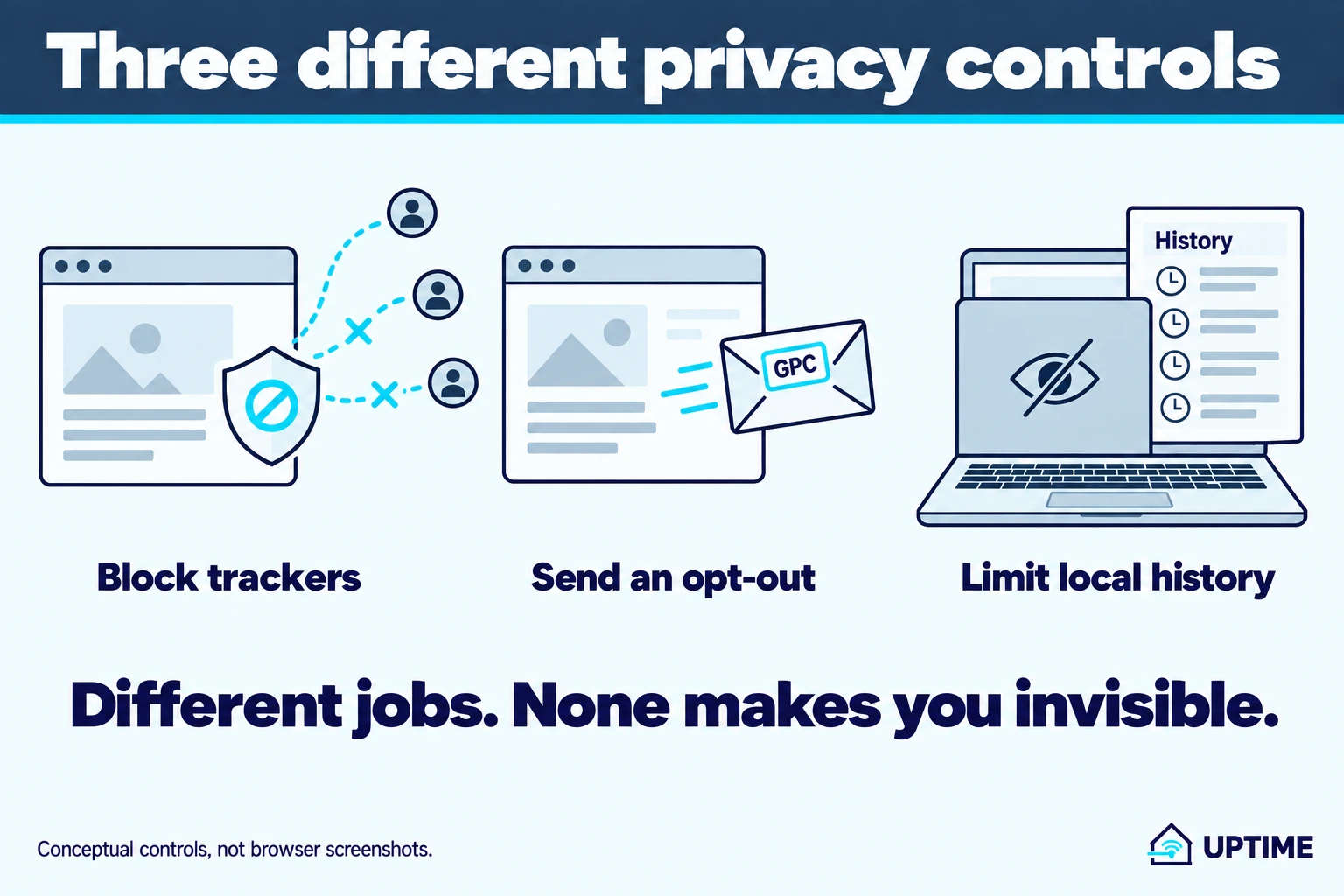
Use them for their actual purpose. For example, private browsing can be useful on a shared computer, but it is not a substitute for cross-site tracking protection. An opt-out signal can complement blocking without doing the same work.
Chrome: start with third-party cookies
Open Settings → Privacy and security → Third-party cookies. Review the current choice and select Block third-party cookies if that matches your goal. Google’s cookie instructions explain both the global setting and site exceptions.
Third-party cookies can let embedded services recognize activity across sites. Restricting them addresses that mechanism, not every possible way to recognize you.
Try a few sites you depend on afterward, especially sign-in flows and embedded tools. Some features may rely on cross-site cookies. If a necessary feature stops working, investigate a narrow exception for that trusted site instead of allowing them everywhere.
An exception reduces protection for its scope. Read whether it applies to one site or a wider domain, and remove it if it did not solve the problem. Chrome also offers temporary allowances through the address-bar cookie control.
Do not clear every cookie just to enable this setting. Clearing existing site data is a separate action that can sign you out and remove saved preferences.
Edge: choose a tracking-prevention level deliberately
Open Settings → Privacy, search, and services → Tracking prevention. Microsoft documents three levels:
- Basic: Allows most trackers while blocking potentially harmful ones.
- Balanced: The default; blocks potentially harmful trackers and trackers from sites you have not visited.
- Strict: Blocks most trackers across sites, with a greater chance that a site will not work as expected.
Balanced is a reasonable starting point if you want protection with fewer interruptions. Strict is worth trying if you are prepared to check the sites you use and manage occasional exceptions. That is a usability choice, not a promise that either level stops all tracking.
Microsoft names examples of breakage such as a video that will not play or trouble signing in. If that begins immediately after changing the setting, test whether a site-specific exception resolves it. Do not assume every future site error is caused by tracking prevention.
Firefox: inspect Enhanced Tracking Protection
Open Settings → Privacy & Security and find Enhanced Tracking Protection. Some versions use slightly different labels or an Advanced settings control.
Mozilla’s documentation describes Standard and Strict modes. Standard already includes protections, including Total Cookie Protection, which separates cookies by the site where they are used. Strict extends protection, including blocking tracking content in ordinary windows rather than only private windows.
You do not have to choose Strict to have protection. Start by seeing what is already enabled, then decide whether you want the additional restrictions.
The shield beside the address bar shows protections for the current site. Use it to inspect what Firefox reports blocking. If a trusted site breaks, that same control lets you test an exception. Re-enable protection if the exception does not help.
A blocked-item count is useful feedback about this browser session. It is not a score proving one browser is more private than another.
Safari on Mac: check cross-site tracking protection
Open Safari → Settings → Privacy and select Prevent cross-site tracking.
Apple explains that this restricts tracking associated with third-party content, including social sharing controls, and describes limits on third-party cookies and website data. Safari also reduces information that can contribute to device fingerprinting.
These protections reduce particular tracking opportunities. They do not stop a site you sign into from knowing which account is using its own service.
Use the official instructions for your Safari version if the menu differs. Do not turn off every privacy control because one embedded feature fails; first confirm what that feature needs and whether you actually need to use it.
Global Privacy Control is not Do Not Track
Chrome’s Do Not Track documentation says it sends a request, and that most websites and services do not change their behavior in response. Do not treat that setting as technical tracker blocking.
Global Privacy Control, or GPC, is different. It communicates a preference to opt out of specified sale or sharing of personal information. Its legal effect depends on the applicable jurisdiction and circumstances; it is still a signal, not a network filter. The W3C working draft explains that distinction and its limits.
In Firefox, open Settings → Privacy & Security and look for Tell websites not to sell or share my data, under Website Privacy Preferences or Additional protections, depending on version. Mozilla documents the setting and recommends combining it with tracking protection.
The practical distinction is simple: do not dismiss every signal as meaningless, and do not assume sending one proves compliance. Use supported opt-outs alongside the browser’s technical protections.
Private browsing does not hide you from the internet
Incognito and other private modes are useful when you do not want a session retained in the usual local browsing history. They are not an anonymity service.
Google’s Incognito explanation says activity can remain visible to websites, an employer or school, and the internet provider. Downloads and bookmarks you create can remain after the session.
Signing into an account still identifies you to that service. Closing the private window does not undo what you submitted to it.
Similarly, a control about personalized ads is not automatically a control over every collection practice. Read the specific setting: what data or use does it address, and what does it explicitly leave unchanged? Avoid interpreting a less-personalized advertisement as proof that no data was collected.
Make one change, then check your everyday sites
After adjusting a control:
- Reload the site so the change applies to the session you are testing.
- Check an ordinary task: sign in, play a needed video or use an embedded document.
- If something fails, note the setting you just changed.
- Test the smallest relevant exception, only for a site you trust.
- Remove the exception if it does not help.
Keep workplace requirements in place on managed computers. If a control is locked, ask the administrator rather than trying to bypass it.
This check establishes whether your normal tasks still work. It does not measure all tracking or prove that a company complied with a request.
The useful stopping point is a browser with protections you understand, a short list of justified exceptions, and no expectation that one privacy switch can make every activity invisible.

Wi-Fi & Networking
How to Set Up a Home Network Correctly
Identify your modem or gateway, connect your router and switch in the right order, secure Wi-Fi, place mesh nodes, and test the finished network.
Software
What Windows Backup Actually Saves, and How to Check a Restore Works
See what Windows Backup protects, how OneDrive sync differs from a separate backup, and how to recover a test file without overwriting your working copy.

Software
How to Free Up Windows Disk Space Without Deleting the Wrong Thing
Review Windows cleanup settings, distinguish OneDrive's Free up space from Delete, and find large files without risking your only copy.

About the author
Doni makes home tech understandable.
Uptime turns the answers he gives friends and family into practical public guides. Research assistance and editing tools may be used; claims are checked against named sources and no hands-on testing is implied unless stated.