
What Windows Backup Actually Saves, and How to Check a Restore Works
See what Windows Backup protects, how OneDrive sync differs from a separate backup, and how to recover a test file without overwriting your working copy.

The short answer
Windows Backup helps recover selected folders, settings and your app list. It is not a full PC image. Check folder coverage, OneDrive sync and a separate recoverable copy.
If your laptop died today, could you get your files back? What about the project you saved outside Documents, or the application you bought years ago?
Windows Backup can help, but one reassuring status screen does not answer all of those questions. It protects selected things, through different mechanisms. Knowing which ones lets you close the gaps before you need a replacement PC.
This guide covers Microsoft’s consumer Windows Backup app and OneDrive folder backup. It is not a claim that every Windows backup product works the same way.
What Windows Backup covers
Open Start, search for Windows Backup, and inspect each category. Do not assume every switch is enabled.
Microsoft’s Windows Backup guide describes the following:
| Category | What you can recover |
|---|---|
| Selected folders | Desktop, Documents, Pictures, Videos and Music folders enabled for OneDrive backup |
| Apps | A record of apps that helps you reinstall them, not a complete copy of each installation |
| Settings | Supported preferences such as accessibility, personalization and language |
| Credentials | Supported account and Wi-Fi information |
The app is intended for personal Microsoft accounts. Microsoft’s component overview explains its consumer focus and managed-account limitations. For a work or school computer, ask the administrator which backup actually applies.
Cloud copies can help when a computer is lost or its drive fails. That is valuable protection. What this feature does not give you is a complete, interchangeable copy of the whole machine.
Find the files that fall outside the switches
Start with three things you would genuinely miss. Open each one’s location in File Explorer and write down the full folder path.
A project in a separate folder at the root of C:, on another drive, or in an application’s own storage is not automatically protected by enabling Documents. An app appearing in the backed-up app list does not prove its databases, presets, licenses or working files are recoverable.
Microsoft distinguishes backup from operating-system recovery: Windows Backup does not include system files or operating system components. App reinstallation and Windows recovery are separate jobs.
Do not move an active project into a different folder just to make the backup switch cover it. Moving paths can affect the software using them. Instead, check that application’s export or backup instructions and choose an appropriate backup location.
OneDrive synchronization is not an independent archive
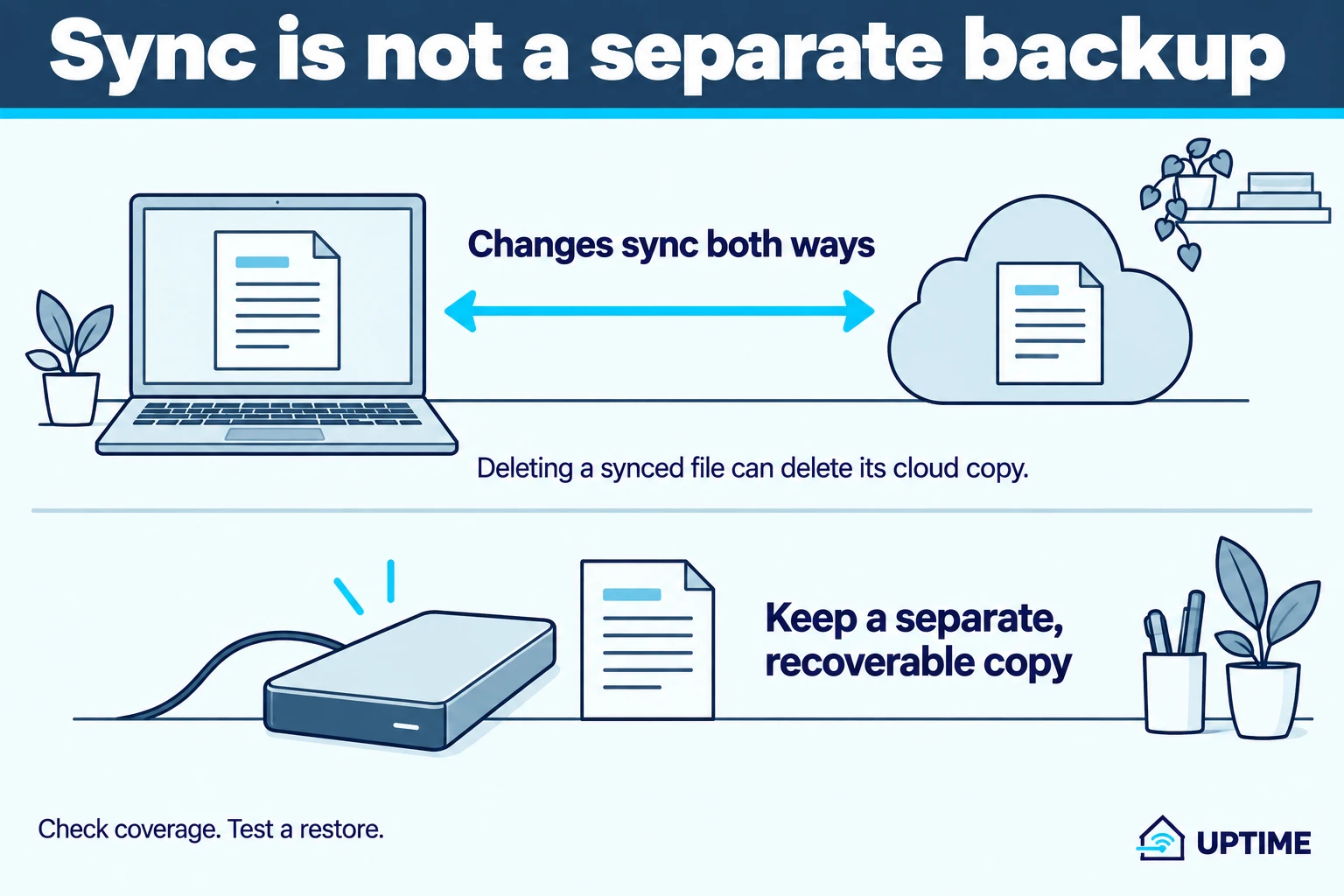
Folder backup uses OneDrive synchronization. Microsoft explains that additions, changes and deletions synchronize between the computer and OneDrive.
That means the cloud copy can survive a broken laptop, but deleting a synced file on purpose can also delete its cloud copy and affect other synced devices.
Sync can carry deletions too. Keep a separate, recoverable copy of important files.
OneDrive has recovery tools, including version history for earlier file contents. Those are useful, but availability and retention are not the same as an independent copy you control. Do not test recovery by deleting your only important file.
A second device that synchronizes the same folder is not automatically a separate backup. It may faithfully receive the same mistake.
Check storage and completion
Open Windows Backup to review its status, then inspect OneDrive’s synchronization status and account storage.
Microsoft lists 5 GB of free OneDrive storage for a personal account, with additional storage available separately. Its Windows Backup instructions also warn that personalization preferences will not be backed up when OneDrive storage is insufficient. Account allowances differ, so check yours rather than assuming the free allowance is your limit.
Treat a full quota, paused synchronization or an error as something to resolve before relying on a new file being protected. Do not infer completion from the fact that the file exists on your PC.
Then check through a second route: sign into OneDrive on the web with the same account and find a recently changed file. The next section turns that check into a small recovery exercise.
Recover a test file without overwriting anything
This checks that a usable cloud copy exists. It does not test full-PC recovery or every application’s data.
- Pick a harmless file inside a folder you have enabled for backup. Add a distinctive line such as today’s date, save it and wait for synchronization to finish.
- In your browser, open OneDrive and sign in to the same Microsoft account. Find the file and check its contents or modification information.
- Select the file and choose Download, following Microsoft’s download instructions.
- Save it into a new recovery-test folder outside the synced folder you are testing. If your browser saves automatically, locate the downloaded copy first. Do not replace the original.
- Open the recovered copy in its normal application. Confirm the distinctive line and any essential content, not merely the filename.
- Repeat the download check with one important file, again keeping the working original untouched.
If you need an earlier version rather than the current cloud copy, inspect Version history using Microsoft’s instructions linked above. Restoring an older version changes which version is current; do not experiment on your only working document.
Record the file, recovery method and date. A successful test is evidence for that file and route, not proof that everything on the computer is backed up.
Add a separate file backup where it matters
File History can keep versions of personal files on an external drive or network location.
To set it up, connect the destination and open Control Panel → System and Security → File History. Choose the drive and turn it on. Check the included libraries and exclusions; having the drive plugged in does not by itself prove your project folder is covered.
To test a version already captured by File History, right-click the relevant folder in File Explorer, choose Restore previous versions, select the version, then expand Restore and choose Restore to…. Use a separate test location. Microsoft’s instructions warn that restoring over the current version replaces it.
For cloud-only files, do not assume a placeholder is a usable backup. Make the required files locally available first, allow the backup to complete, and open a recovered copy to verify it.
A regularly updated drive that is disconnected between backups adds separation from accidental changes on the PC. It still needs protection from loss or damage. For irreplaceable material, avoid keeping every copy with the same device in the same place.
What happens when you replace the PC?
Windows Backup’s broader restore flow appears during setup on a new PC or after reinstalling Windows, using the same Microsoft account. Supported settings and app pins can return; applications may still need installation and sign-in.
That is different from downloading one file from OneDrive. Do not reset a working PC just to test whether a document can be recovered.
Keep the account recovery information you need somewhere accessible without the failed computer. Check software license and export requirements before you depend on reinstalling a specialist application.
Your backup is understood when
- You know which folders are covered and which important folders are outside them.
- Synchronization is complete and the account has enough storage.
- You have downloaded and opened a separate test copy.
- Important files have another recovery route whose scope you checked.
- You know how to access the account and reinstall essential software without this PC.
The useful outcome is not every switch turned on. It is knowing what you could recover, from where, and how.
Software
How to Free Up Windows Disk Space Without Deleting the Wrong Thing
Review Windows cleanup settings, distinguish OneDrive's Free up space from Delete, and find large files without risking your only copy.
Software
Which Browser Privacy Settings Actually Change Tracking
Choose useful privacy controls in Chrome, Edge, Firefox and Safari. Understand tracker blocking, Global Privacy Control and what private browsing does not hide.

About the author
Doni makes home tech understandable.
Uptime turns the answers he gives friends and family into practical public guides. Research assistance and editing tools may be used; claims are checked against named sources and no hands-on testing is implied unless stated.