
How to Free Up Windows Disk Space Without Deleting the Wrong Thing
Review Windows cleanup settings, distinguish OneDrive's Free up space from Delete, and find large files without risking your only copy.

The short answer
Check what is using space, review cleanup settings, and inspect each removal category. A large file is not automatically disposable, and cloud Free up space is different from Delete.
You need room for an update or a new project, but the drive is nearly full. Deleting the biggest thing you can find is tempting. It is also an easy way to lose something you intended to keep.
Start by finding out what Windows is counting. Then decide whether you want to remove a local copy, uninstall an application or permanently discard a file. Those are different actions.
The steps below focus on Windows 11. Menus can vary by version or by settings managed by your employer.
1. Look at storage before running cleanup
Open Settings → System → Storage. Note which drive is full and how much free space it has. Give the categories time to load.
If applications dominate, uninstalling an unused application may achieve more than clearing small caches. If personal media dominates, you need to decide what to keep and where, not simply enable more aggressive cleanup.
Before deleting important files, verify another copy by opening it. A backup reduces risk; it does not make every cleanup action harmless. In particular, removing application or Windows files manually can damage something a personal-file backup cannot repair.
2. Inspect Storage Sense before enabling it
Open Settings → System → Storage → Storage Sense. Microsoft documents its automatic cleanup controls.
Read the actual settings on your computer. Defaults and existing choices can differ, so do not assume Downloads, the Recycle Bin or cloud content are configured the way you expect.
| Control | Check before confirming |
|---|---|
| Temporary-file cleanup | What Windows proposes to remove |
| Recycle Bin schedule | How long deleted items remain before automatic removal |
| Downloads schedule | Whether it can delete files you still use or need |
| Cloud content | When locally available files may become online-only |
| Run frequency | Whether you want scheduled cleanup or a one-time run |
If Downloads contains working documents, leave its automatic deletion rule off. An age rule cannot tell whether an unopened file is important.
Storage Sense works on the system drive. If another drive is full, inspect that drive separately instead of expecting the C: cleanup to solve it.
Review the Recycle Bin before a manual cleanup, especially if you use it as a temporary recovery window. Emptying it should be a deliberate decision, not an automatic final step.
3. Review Cleanup recommendations item by item
Go to Settings → System → Storage → Cleanup recommendations.
Microsoft’s cleanup guide groups recommendations into temporary files, large or unused files, cloud-synced files and unused apps. It asks you to review the categories and select what to clean.
“Recommended” does not mean “unimportant.” Inspect names, locations and the action being offered.
- Temporary files: Read the individual entries. Do not select a category simply because it is under this heading.
- Large or unused files: Open or identify the file before choosing it. An old family recording may be both large and rarely opened.
- Cloud files: Confirm whether the action removes only the local copy or deletes the file.
- Unused apps: Check that you no longer need the application and have preserved any data it owns.
Deleting a previous Windows installation removes the ability to roll back to that version. Microsoft’s guidance describes this option within 10 days of an upgrade and warns that the deletion cannot be undone. Keep the rollback option if you might need it.
Run one selected cleanup, then check free space again. Record what it recovered before selecting more categories.
4. In OneDrive, distinguish Free up space from Delete
For a synchronized OneDrive file, Free up space makes the file online-only while keeping the cloud copy. Delete removes the file and can propagate to OneDrive and other synced devices. Microsoft explains Files On-Demand and deletion behavior.
Free up space removes the local copy. Delete can remove the synced file everywhere.
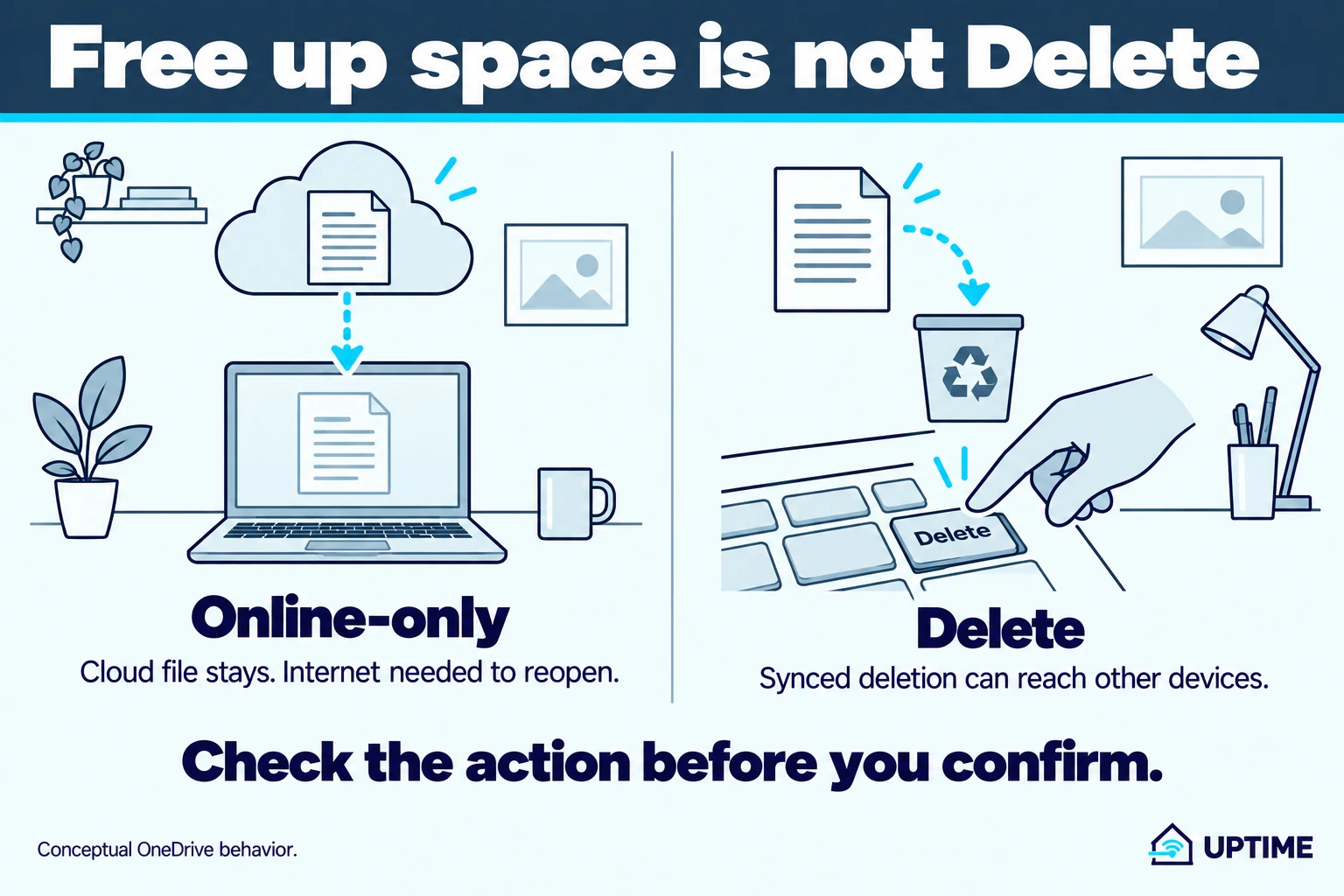
To reclaim local space without discarding the cloud file:
- Confirm that synchronization has finished and the file is available in OneDrive on the web.
- In File Explorer, right-click the relevant OneDrive file or folder.
- Choose Free up space, not Delete.
- Check that it is now online-only. Plan on internet access when you next need to open it.
For something you must use without internet, choose Always keep on this device instead and allow it to download. That choice uses local space, deliberately.
Do not make a whole active project online-only without checking what its application expects. Files On-Demand is a storage tool, not a guarantee that every application handles unavailable files gracefully.
The cloud copy is also not an independent archive: a later synchronized deletion can still affect it. Keep another recoverable copy of irreplaceable material.
5. Use a space map when you still cannot find the cause
A disk analyzer is useful when Storage categories do not explain the problem. WizTree provides a visual map and file listing; its Windows application is free for personal use, with separate commercial licensing.
Download from the publisher, select the drive you mean to inspect and scan it. Treat the result as a map, not a removal recommendation.
A space map shows what is large, not what is safe to delete.
For each large item you recognize:
- Open its location and identify the actual contents.
- Decide whether you still need it.
- If keeping it, verify the other copy before removing this one.
- Use the owning application’s uninstall or cleanup feature where appropriate.
Leave unfamiliar folders, Windows directories and application internals alone. Do not delete a large database or cache merely because its name looks technical.
For games and installed software, use the launcher or Settings → Apps → Installed apps to uninstall or move them through supported controls. Export or back up application data first if you need to retain it.
6. Moving files is not the same as backing them up
An external drive can hold media you want to keep without filling the internal drive. But moving the only copy changes its location; it does not create redundancy.
For files you care about, copy them first, open a sample from the destination and confirm the transfer. Decide on an additional backup before deleting the internal originals.
Be particularly careful with video projects, photo catalogs and music libraries. Their project files can refer to media elsewhere. Move them using the application’s supported workflow when possible, rather than rearranging folders behind its back.
Stop when the immediate problem is solved
You do not need to remove every reclaimable byte. Once the update or project fits with working room left, keep the changes you understand and stop escalating.
If space rapidly disappears again, compare Storage categories at two points in time. Identify the growing application or folder before repeatedly clearing it. That is a different problem from a drive filled with known media.
If you still cannot identify a large system item, seek help with its path and category, without sharing private filenames unnecessarily. Guessing is not a maintenance technique.
Before you close Settings
- Record the free space before and after cleanup.
- Review Downloads and Recycle Bin rules before scheduling Storage Sense.
- Confirm which action keeps a cloud copy and which deletes it.
- Preserve any rollback option and application data you still need.
- Open a verified second copy before discarding an important original.
The best cleanup is not the one that removes the most. It is the one that gives you enough room without creating a recovery job.
Software
What Windows Backup Actually Saves, and How to Check a Restore Works
See what Windows Backup protects, how OneDrive sync differs from a separate backup, and how to recover a test file without overwriting your working copy.

Software
Which Browser Privacy Settings Actually Change Tracking
Choose useful privacy controls in Chrome, Edge, Firefox and Safari. Understand tracker blocking, Global Privacy Control and what private browsing does not hide.

About the author
Doni makes home tech understandable.
Uptime turns the answers he gives friends and family into practical public guides. Research assistance and editing tools may be used; claims are checked against named sources and no hands-on testing is implied unless stated.